
Sync Palettes to Figma with the Rampancy Plugin
- figma
- plugin
- variables
- sync
Pair the Rampancy Figma plugin with a personal access token, and every palette you've saved becomes a Figma Variable Collection you can bind straight to your components. Edit the palette in Rampancy, hit Sync again, and the existing variables update in place. Nothing you've already wired up in Figma breaks.
What You'll Need
- A Rampancy account with at least one saved palette (the built-in Tailwind preset works if you just want to try this).
- Figma, desktop or browser.
- The plugin, installed from the Figma Community.
Step 1: Generate a personal access token
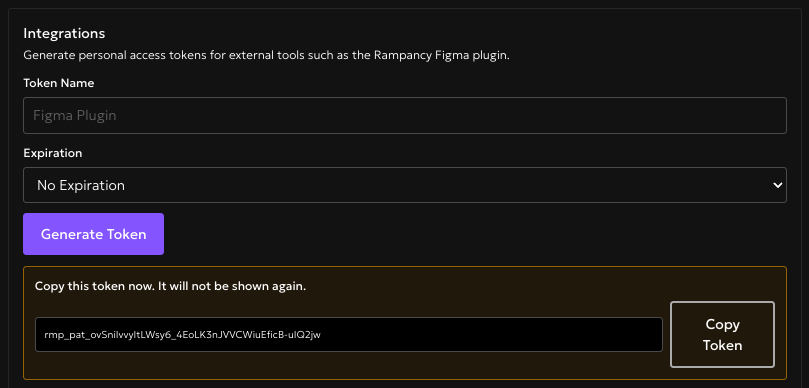
Open Account Settings → Integrations and click Generate Token. Name it something you'll recognize later, "Figma Plugin" is fine, and copy the value immediately. It's shown exactly once; close that panel without copying it and you'll be generating a new one.
Step 2: Install the plugin and pair it
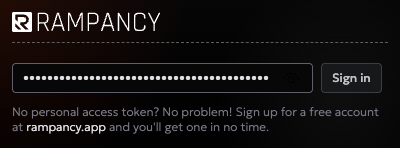
Install Rampancy from the Figma Community listing, then run it from the Plugins menu. The first screen you'll see is a pairing prompt: a single field for the token you just copied. Paste it in and click Sign in.
If the token's wrong, expired, or already revoked, the plugin drops you into a dedicated invalid-token screen so you can paste a fresh one without restarting the whole plugin.
Step 3: Pick a palette and sync
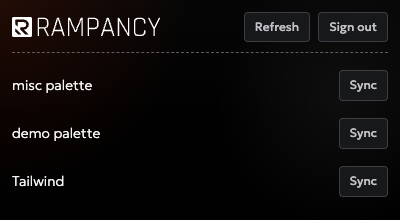
Once you're paired, every saved palette on your account shows up in a list, each with its own Sync button. Pick the one you want in Figma and click Sync.
The plugin window sits right on top of your canvas, like any other Figma plugin, while you work.
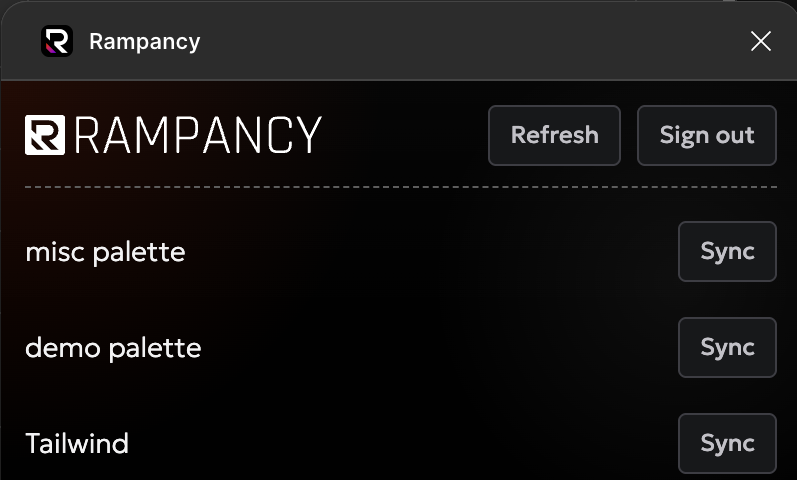
Under the hood, the plugin's sandboxed code (not the UI you're looking at) fetches the palette from Rampancy, converts every ramp step to hex, and writes it into Figma as a Variable Collection named after the palette. This first sync creates one variable per ramp step, named RampName/Step, for example Amber/500.
Step 4: Check the result in Figma
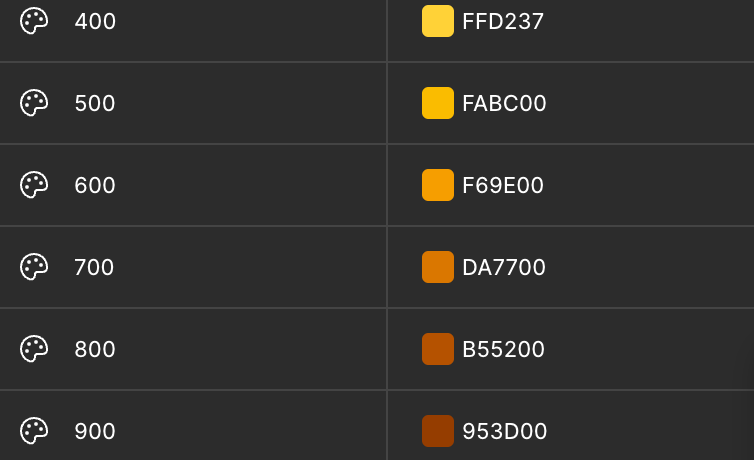
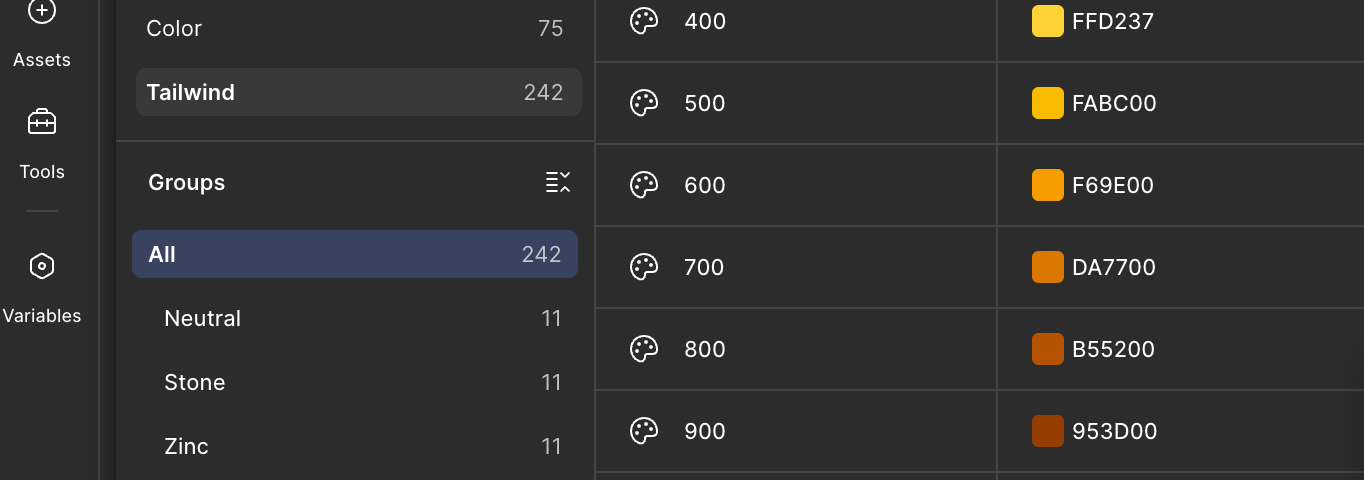
Open Figma's Variables panel and you'll find a new collection named after the palette you synced, Tailwind in this case, with 242 variables inside it (22 ramps × 11 steps). Each ramp gets its own group of rows, so the Amber ramp reads 400, 500, 600, and on through 1100, each row carrying its own hex value straight from Rampancy. Bind a fill or a component property to any of them the same way you'd bind to a variable you made by hand, nothing about a synced variable is second-class.
Step 5: Re-sync after you edit a palette
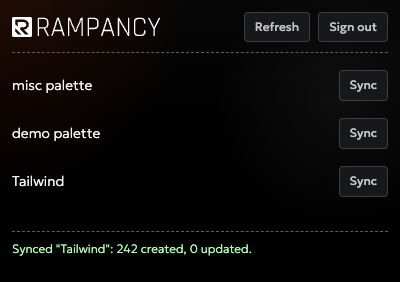
Change a color back in Rampancy, adjust a curve, rename a ramp, whatever, and come back to the plugin whenever you want Figma caught up. Click Sync again on the same palette. The plugin matches existing variables by name and updates their values instead of creating duplicates, so anything already bound to them in your file just picks up the new color.
I'll admit the one-way part tripped me up the first time. I synced a palette, tweaked a swatch directly in Figma's Variables panel out of curiosity, then went looking in Rampancy for that change. It's not there, and it never will be. Figma variables are a mirror of what you last synced, not a live connection back to the palette that made them.
FAQ
Does sync go both ways?
No, and that's deliberate. Rampancy's ramps are generative, driven by channel curves, while Figma variables are flat color values. There's no shared data model to push a Figma edit back into, so the plugin only ever writes Rampancy → Figma.
Do component bindings survive a re-sync?
Yes. Re-syncing looks up each variable by its RampName/Step name inside the palette's collection and updates the color in place, so the variable itself, and anything bound to it, stays exactly where it was.
How is this different from the Figma Variables export?
The Export modal's Figma Variables option gives you a one-time zip of W3C design tokens to drag into Figma, no plugin required. The plugin is for when you want that connection to stay open: re-run Sync any time your palette changes and the same variables update instead of piling up duplicates.
Grab a personal access token and give it a try, or just sign up first if you haven't got a palette to sync yet.