
Build color ramps in OKLCH, OKHSL, HSL, or RGB
- color
- palettes
- color-spaces
- design-systems
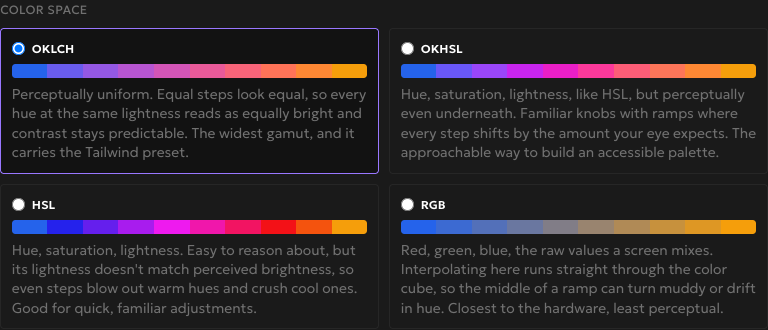
Every palette in Rampancy now lives in a color space you choose up front: OKLCH, OKHSL, HSL, or RGB. That single choice decides how your shades blend from light to dark, which channels you edit, and what the CSS export says. Build the same ramp in each and the differences stop being abstract. That's the fastest way to find the space that fits your work.
What You'll Need
- A Rampancy account, or nothing at all. As a guest, your palettes save straight to the browser.
- A base color or two in mind, or one of the built-in famous palettes to start from.
- A few minutes to build one ramp in each space and compare.
Step 1: Pick a color space
Hit Add Palette and the create dialog opens with the color space up top. Four cards, each with a thin gradient that runs the same two endpoints through that space. Same start, same end, four different middles, so you can read the character of each before you commit.
OKLCH and OKHSL hold the gradient even. HSL bends it toward the warm end. RGB lets the middle sag toward gray. The space locks once you create the palette, and that's the point: the editor then speaks that space's language and never quietly converts your colors behind your back.
The first time I dragged a blue-to-amber ramp through RGB, the midpoint came out the color of dishwater. That muddy middle is exactly what the RGB card warns about, and it's the reason the other three spaces exist.
Step 2: Start from a famous palette
You rarely want to start from an empty grid, so every space ships with palettes you'll recognize. OKLCH carries Tailwind and Radix. OKHSL has Material. HSL has Open Color. RGB has Ant Design. The three non-OKLCH spaces add a generated Color families set, and all four offer Blank, which is the default when you'd rather build from your own base tones.

These aren't static swatches. They load as real, editable ramps built from each palette's own hex values, at its native step count. Radix comes in at 12 steps, Tailwind at 11, Material and Open Color and Ant Design at 10. Pick Ant Design under RGB and you get Ant's actual scales, Volcano and Geekblue and Magenta included, with Blue-6 landing right on #1677ff.
Step 3: OKLCH, even by construction
OKLCH is the default, and for most design-system work it's the one to beat. It's perceptually uniform, which means equal steps look equal: a yellow and a blue set to the same lightness read as equally bright. That keeps contrast predictable, so a lightness curve holds its brightness across every hue instead of drifting darker on the blues.
Open an OKLCH palette and the three channels are Lightness, Chroma, and Hue. Lightness runs 0 to 100, chroma 0 to 40, hue around the full 360-degree wheel.
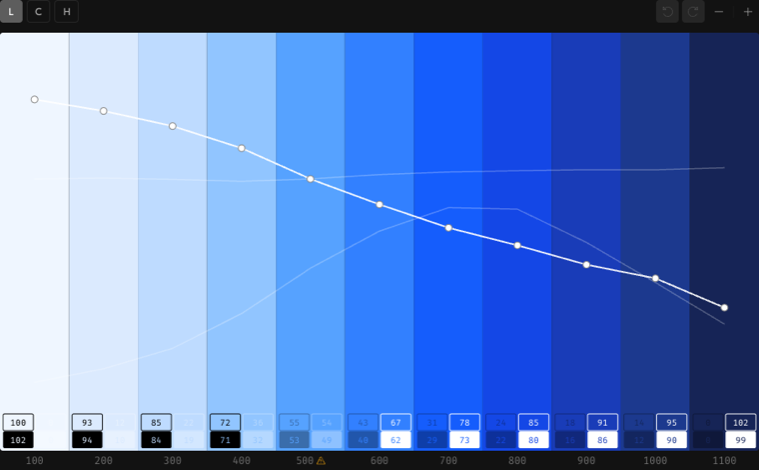
OKLCH also reaches the widest gamut of the four. The model can describe the P3 colors on a modern display, roughly 25 to 30% more than sRGB, which is why Tailwind v4 rebuilt its default palette on oklch(). Rampancy keeps chroma inside the sRGB gamut on export so your values stay portable everywhere, but you're editing in the space Tailwind itself now speaks.
Step 4: OKHSL, perceptual with familiar knobs
Like HSL's controls but want OKLCH's evenness? OKHSL is the bridge. Björn Ottosson built it in 2021 as a perceptual take on HSL, layered on the same OKLab math behind OKLCH. You get Hue, Saturation, and Lightness, the knobs you already know, but nudging lightness a notch changes brightness by the amount your eye expects rather than blowing out the yellows.
Its channels read Hue, Saturation, Lightness, each 0 to 100 with hue on the wheel. The starter palette is Material, materialized into those channels at Material's 10 steps.
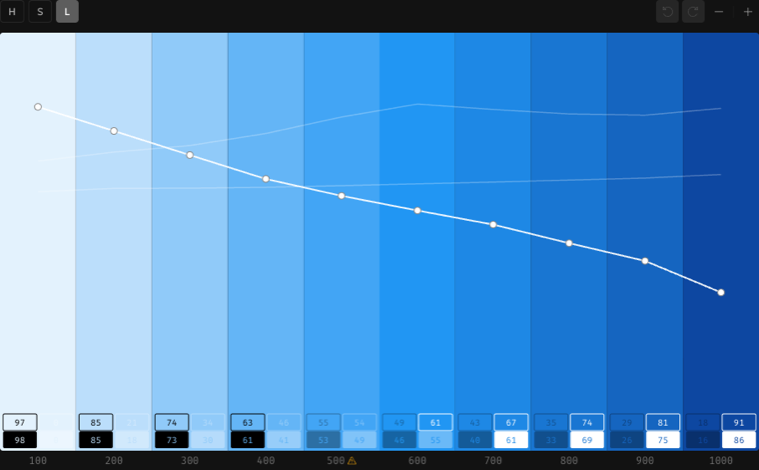
One caveat up front: CSS has no okhsl() function. So an OKHSL palette exports as oklch(), the nearest standard function that lands on the same color. You author with familiar HSL-style knobs and still ship standards-friendly CSS.
Step 5: HSL, familiar but uneven
HSL is the model most people met first, and it's genuinely handy for a quick tweak. Hue, Saturation, Lightness, all easy to reason about. The catch is that HSL lightness doesn't track how bright a color actually looks. Set every hue to the same lightness value and the warm ones blow out while the cool ones sink.
The channels match OKHSL on the surface, Hue and Saturation and Lightness on 0 to 100, but the numbers run through the classic sRGB formula, so evenly spaced steps won't look evenly spaced. HSL's starter palette is Open Color, a well-balanced 10-step set.
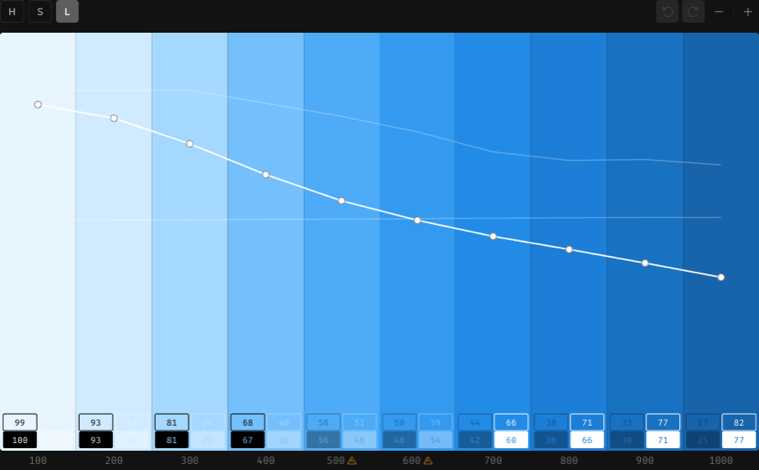
Reach for HSL when you want a fast, familiar adjustment and you're eyeballing the result anyway. For a ramp that has to stay even across a dozen hues, OKLCH or OKHSL saves you the touch-up pass.
Step 6: RGB, closest to the screen
RGB is the raw material, the red, green, and blue values your screen actually mixes. No hue wheel, no lightness abstraction, just three channels from 0 to 255. That makes it the right space when a spec hands you exact channel numbers, and the wrong one for a smooth ramp, because interpolating straight through the color cube drags the midpoint toward gray or off into a hue you didn't ask for.
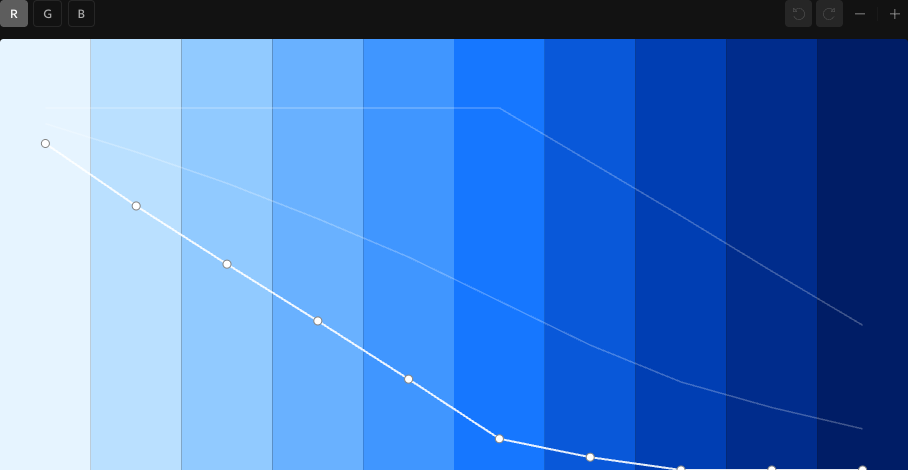
Two things work differently here. RGB has no hue axis, so Hue Shift is hidden and all three channels move together when you link ramps. And its starter palette is Ant Design, whose scales were tuned by hand, so even though the space muddies its own interpolation, Ant's materialized steps stay crisp. A hand-built RGB ramp can be excellent; it's the automatic in-between colors that suffer.
Step 7: Read and export in the same space
Click any step and the readout panel leads with your palette's own space. For an RGB palette that's RGB first, then HEX, HSL, and OKLCH, so you can copy whatever your codebase expects.

Export follows the same rule. OKLCH and OKHSL palettes write oklch(), HSL writes hsl(), and RGB writes rgb(). The design-token and Figma exports carry the resolved colors, so a Figma sync matches the app exactly. Pick the space that fits your codebase and the export falls out of it.
Choosing a space
So which one? For a design system that needs even, accessible ramps across many hues, start with OKLCH; it's the default for a reason. If HSL's controls are muscle memory but you want even results, OKHSL gives you both. Keep plain HSL for quick, by-eye adjustments where perfect spacing doesn't matter. Drop to RGB when a spec hands you channel values you have to hit exactly.
You choose per palette, not once and forever. The space is fixed after a palette exists, so if you outgrow your pick, spin up a fresh palette in the space you want and rebuild from your base tones. Nothing stops you keeping the same colors in two spaces side by side to compare.
FAQ
Can I change a palette's color space later?
No. The space is set when you create the palette and stays put, which keeps the editing model honest. To move the same colors into another space, create a new palette there and rebuild from your base tones.
Why does the middle of my RGB ramp look gray?
Because RGB interpolates straight through the color cube, and the geometric midpoint of two vivid colors often sits near the neutral center. OKLCH and OKHSL route around that, which is why their ramps keep their color through the middle.
Do the exports match what I see in the editor?
Yes. Each space exports its native CSS function (oklch, hsl, or rgb; OKHSL uses oklch, since CSS has no okhsl function), and the Figma and design-token exports carry the same resolved colors, so a synced Figma variable matches the app.
Pick two colors you actually use and build the ramp four times, once per space. The differences stop being theoretical about thirty seconds in. Start a palette and see which space you reach for.