
Generate a Linked Dark Mode Palette from Your Light Theme
- dark mode
- groups
- OKLCH
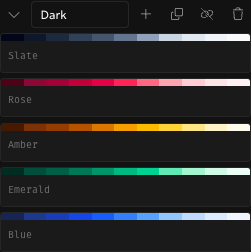
Name a group Light, click one button, and Rampancy builds the matching Dark group from the values you already tuned. The two groups stay linked while you keep editing, so a curve change in one theme lands in the other at the same moment. This tutorial walks through the whole flow, from grouping ramps to unlinking when the themes need to part ways.
What You'll Need
- A free Rampancy account. Building palettes works as a guest, but generating and linking counterpart groups is a signed-in feature.
- A palette with a few ramps. I'm using five from the built-in Tailwind preset: Slate, Rose, Amber, Emerald, and Blue.
- About five minutes.
Step 1: Group your light ramps
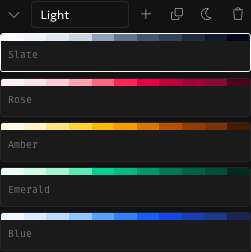
Create a group and name it Light. The name is the trigger: Rampancy checks for the names Light and Dark (case doesn't matter) to offer the counterpart button. Drag your ramps into the group, or add new ones straight from the group header.
Step 2: Generate the Dark counterpart
The group header now shows a moon button labeled Generate Linked Dark Group. Click it.

Rampancy creates a Dark group holding a mirrored copy of every ramp: identical values, step order reversed. The deepest shade of Blue becomes the dark theme's step 100 and the lightest one moves to the far end. Nothing gets recolored or approximated, so the new theme starts from exactly the colors you spent time on.
Step 3: Edit both themes at once
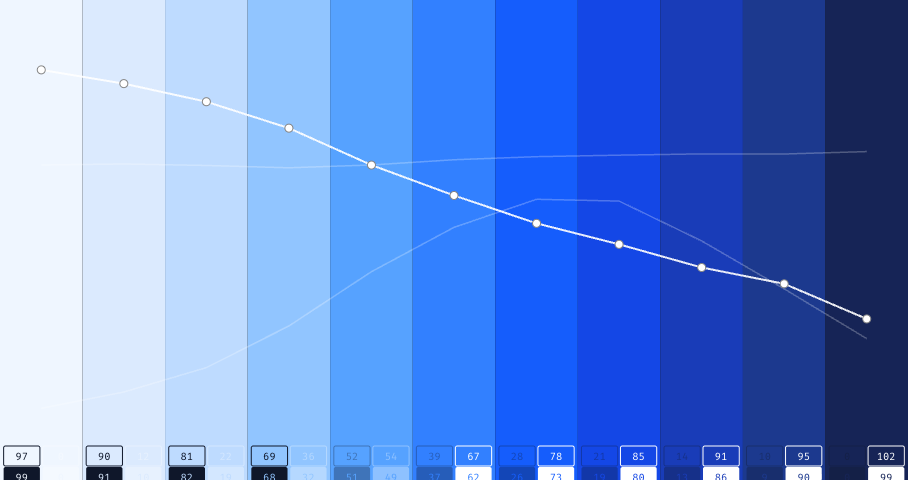
The two groups are now linked. Drag a point on a lightness curve in the Light group and the Dark partner updates during the same drag, mirrored to the matching step. It works in the other direction too: fine-tune a ramp in the Dark group and the Light side follows.
The link goes beyond curves. Step locks land on the mirrored position, a master ramp stays master on both sides, and adding, renaming, duplicating, or deleting a ramp replays in the partner group. Easing settings stay per group on purpose, since a dark theme often wants its values distributed differently than its light twin.
Step 4: Check contrast per group
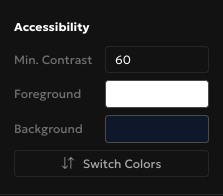
APCA scores how readable text is on a given background, and Rampancy shows those scores under every step. The generated Dark group checks them against the flipped pair of your foreground and background, which is the surface a dark theme actually renders on. Select a ramp in the Dark group and the Accessibility panel shows the flipped pair. The Switch Colors button flips it back and forth for whichever group is selected, and only for that group.
Step 5: Unlink when the themes should diverge
Both group headers carry an Unlink Groups button. One click and the groups become independent. Every ramp, curve, and lock stays exactly where it is; the edits just stop mirroring. There's no relink button, so if you want the link back, delete the counterpart group and generate it again.

FAQ
Do I need an account to generate a dark counterpart?
Yes. Generating the counterpart group and the live link between the two are signed-in features, and a free account is enough. Building and exporting the light palette itself works as a guest.
What exactly ends up in the generated Dark group?
A mirrored copy of every ramp in the source group: the same values with the step order reversed, plus a flipped foreground and background pair for contrast checks.
What happens to my ramps when I unlink?
Nothing visible. Both groups keep their ramps, curves, locks, and masters; they simply stop mirroring each other. Regenerating the counterpart is the only way to create a new link.
A linked dark mode takes one click once your light ramps sit in a group. Create a free account and try it on your own palette.