
Lock a Brand Color Step So It Never Drifts
- tutorial
- palette-editor
- brand-colors

Pin one step of a ramp to an exact color and it stays there. Drag the curve, run Smooth or Linear over it, let a master ramp push every linked ramp around: the locked step keeps its value through all of it. That's Step Lock, new in Rampancy 6.13.0, and it exists for one situation in particular: a brand color that's written into a CI manual and must not move.
What You'll Need
- No account needed to lock a step. Signing in adds cloud autosave so your locks follow you across devices
- A palette with at least one ramp; this walkthrough uses the built-in Tailwind preset
- The one color that has to survive everything. Here it's an amber,
#fabc00, sitting on step 500
Step 1: Select the Step That Carries Your Brand Color
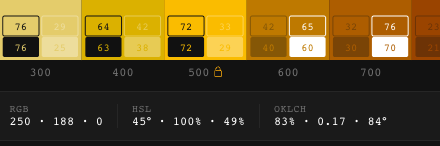
Open the palette in the editor and click the vertical band of the step you care about. The color info bar appears under the canvas with the step number and its HEX, RGB, HSL, and OKLCH readouts. On the right edge of that bar sits the new Lock Step button.

Step 2: Lock It
Click Lock Step. Two things change: the button flips to Unlock Step, and a small lock icon appears next to the step label under the canvas. That's the whole ceremony.
A locked step freezes all three channels of that step in that one ramp. Nothing is re-derived or approximated behind the scenes. The stored values simply stop accepting writes, so the HEX you see in the bar is the HEX you keep.
Step 3: Reshape the Curve Around It
Now do something drastic. Run Linear on the lightness channel: every point snaps onto a straight line between the first and last step. Every point except one. Step 500 holds its 83% lightness and visibly pokes out of the line, and the band under it keeps its exact amber while the neighbors shift.
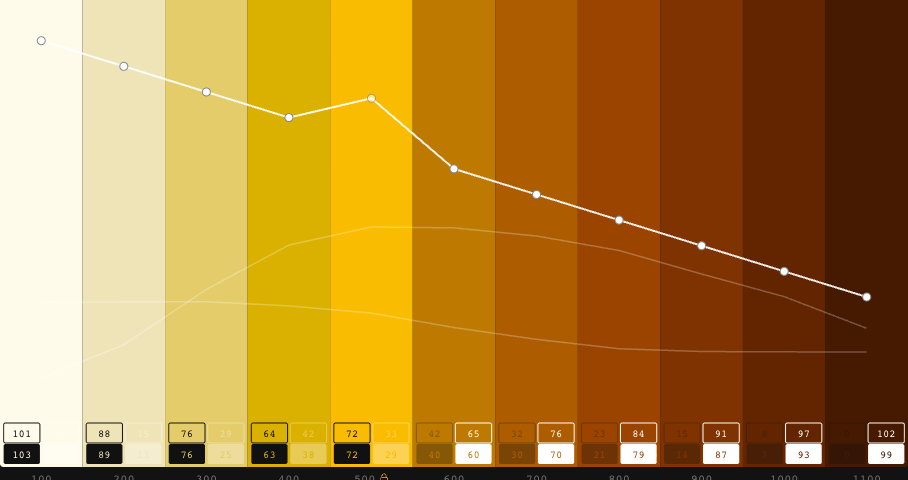
Smooth, Mirror, Easing, Zero, keyboard nudges, and plain handle dragging all behave the same way. They compute their result as usual and skip the locked index. You can't even grab the locked handle; the cursor tells you it's off limits.
Step 4: Let a Master Ramp Try
Master ramps propagate their lightness and chroma edits to every linked ramp in their scope. Which also makes them the easiest way to shift a color you cared about without ever selecting it. So this is the test that matters.
Here Orange is the scope's master, and I mirrored its lightness curve, fully expecting to have wrecked the amber ramp for the screenshot. The entire ramp flipped from light-on-the-left to dark-on-the-left. Step 500 didn't move a single hex digit.
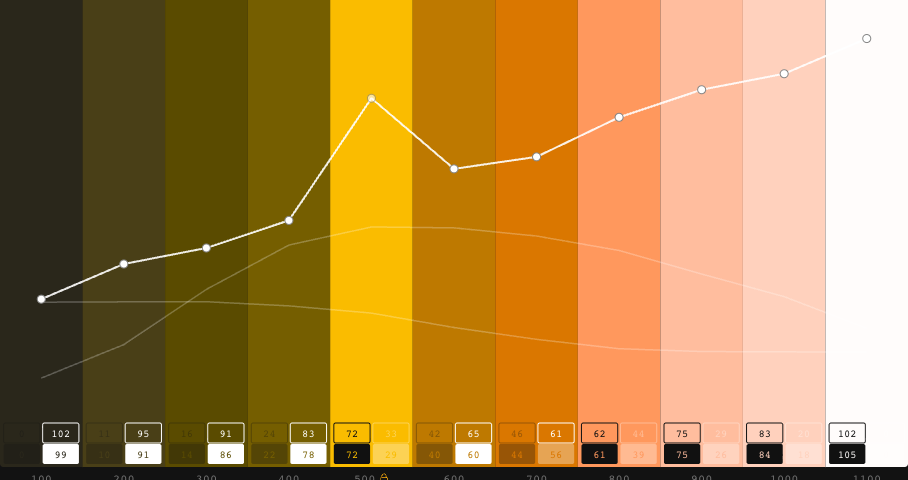
The lock sits above the master in the hierarchy. A locked step ignores incoming master deltas, and if you lock a step on the master ramp itself, that step stops sending deltas too.
Step 5: Unlock When the CI Changes
Rebrands happen. Click the lock icon next to the step label, or the Unlock Step button in the info bar, and the step is an ordinary step again.
Until then the lock travels with the palette: it survives a page reload, and round-trips through export and import in the native Rampancy JSON format. Sign in and your locks sync to your account across devices too.
FAQ
What exactly does a lock freeze?
All three channels of one step in one ramp. Other steps and other ramps are untouched, and you can lock as many steps as you want; each one toggles independently.
Does the lock survive export and import?
In the native Rampancy JSON format, yes, locks are part of the file. Tailwind, CSS, Design Tokens, and Figma exports contain the resolved colors only; there's nothing to lock in a build artifact.
Is a master ramp still useful once locks are in play?
Yes. Its deltas still reach every unlocked step of every linked ramp. A locked step just contributes nothing and receives nothing, which is usually exactly the division of labor you want: the master shapes the system, the lock guards the exceptions.
Got a color that legal would defend in court? Put it on a step, lock it, and shape the rest of the ramp without opening the CI manual again. Sign up to keep it synced across devices.