
Organize at Scale: Group Palettes into Projects
- projects
- organization
- workflow
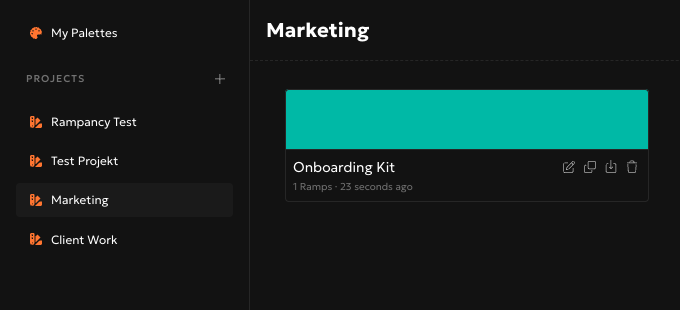
Once a Rampancy library grows past a handful of palettes, "My Palettes" stops being useful as a flat pile. Projects fix that: palettes get grouped by client, product, or whatever makes sense, and moving between them takes one click.
What You'll Need
- A Rampancy account. Projects are an authenticated feature; guest palettes stay in local storage as a flat list, no projects available.
- At least one existing palette to move around.
Step 1: Create a project
In the sidebar, under My Palettes, there's a Projects section with a plus icon next to the header. Click it, type a title and an optional description, and hit Create. That's the whole form, no folder hierarchy to configure, no palette assignment required up front.

Step 2: Move a palette into it
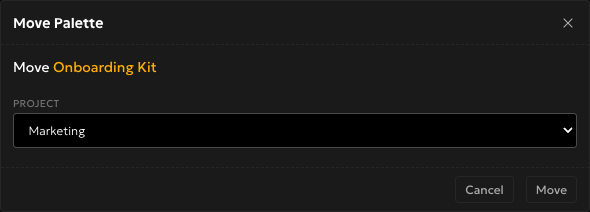
Every palette card in the grid has a Move icon alongside Open, Duplicate, and Delete. Click it and a small modal opens with a single dropdown: pick a project, or pick "No Project (Unorganized)" to pull it back out. One click, no drag required for this part, though the sidebar itself does support dragging (more on that next).
Step 3: Navigate between projects
Click any project in the sidebar and the main view filters to just its palettes, with the project name as the page heading. If you have more than one project, you can drag them in the sidebar to reorder the list, whatever order matches how you actually think about your work gets saved and stays that way next time you load the app.
Step 4: Rename or delete, carefully
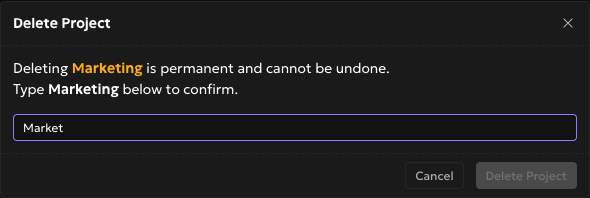
Open Settings from a project's page to rename it or change its description. Deleting is the one part of this feature that deserves a pause: a project's Delete flow makes you type the exact project name before the button even becomes clickable, and for good reason, deleting a project permanently deletes every palette filed under it too, with no soft landing in Unorganized. I've caught myself starting to type the wrong project name here more than once, which is exactly the point of the confirmation.
FAQ
Can I nest projects inside other projects?
No. Projects are a flat list, no subfolders, no nesting. If you need a second level of grouping, a naming convention in the project title does the job just as well.
What exactly happens when I delete a project?
Every palette currently filed under that project gets deleted along with it, permanently. Palettes in "No Project (Unorganized)" are never affected by any project's deletion, since they were never filed under it in the first place.
Do guest accounts get projects?
No. Projects require a Rampancy account. Guest palettes (the ones stored only in your browser) stay as a flat, unorganized list until you sign up.
Move your next ten palettes into two or three projects and see if "My Palettes" feels different. Or sign up and start your first project from scratch.