
Accessible by Default: APCA Contrast & Sync APCA Values
- accessibility
- apca
- contrast
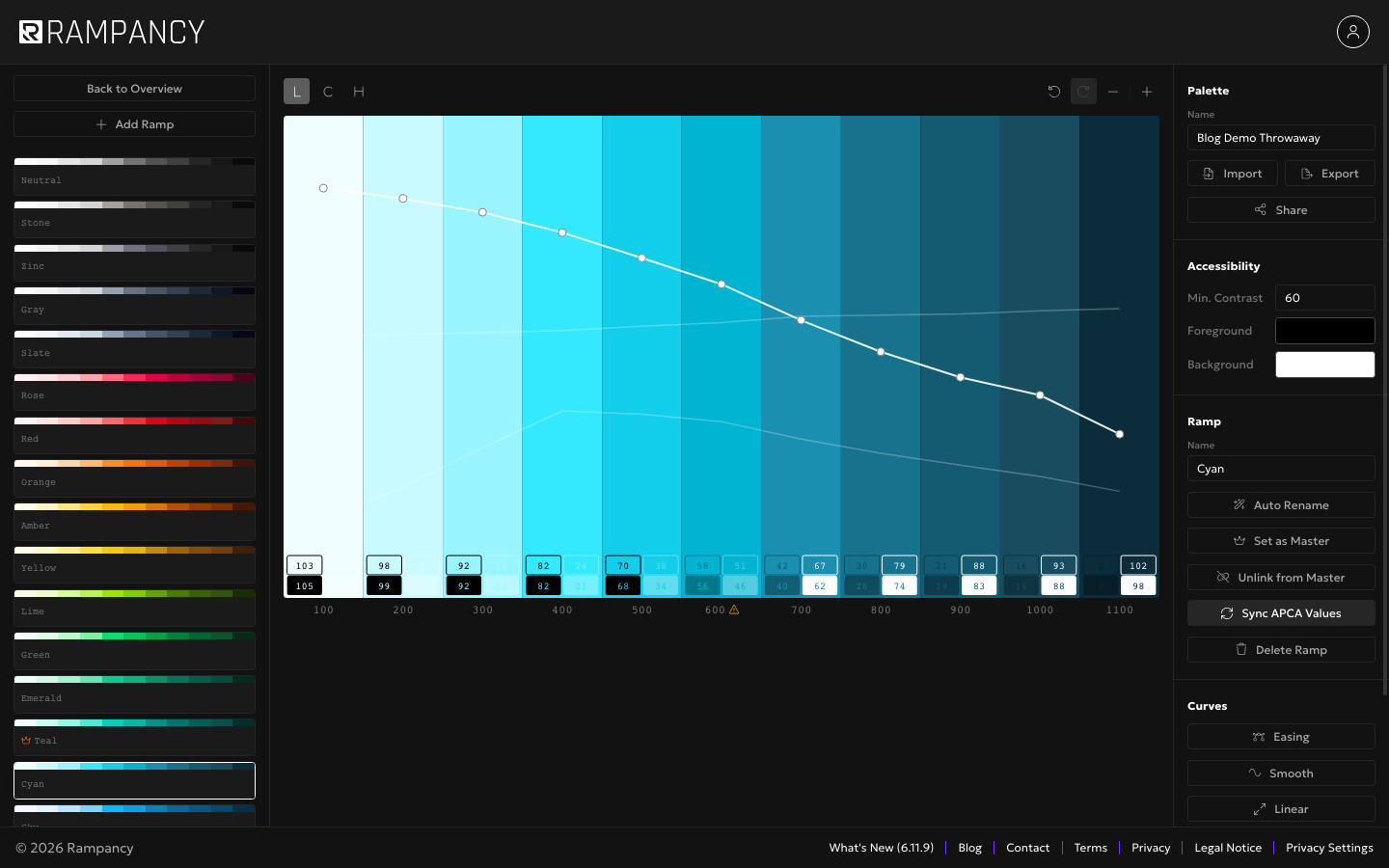
Every step of every ramp in Rampancy now carries its own contrast readout, pass or fail, right on the canvas. Pick one ramp as the reference for a group of colors and any other ramp in that group can sync to its exact contrast in one click, without losing its own hue.
What You'll Need
- A palette with at least two ramps in the same scope (ungrouped ramps count as one shared scope, or use a group). No account needed; the APCA chips and Sync run in the editor for guests too.
Step 1: Read the APCA chips on every band
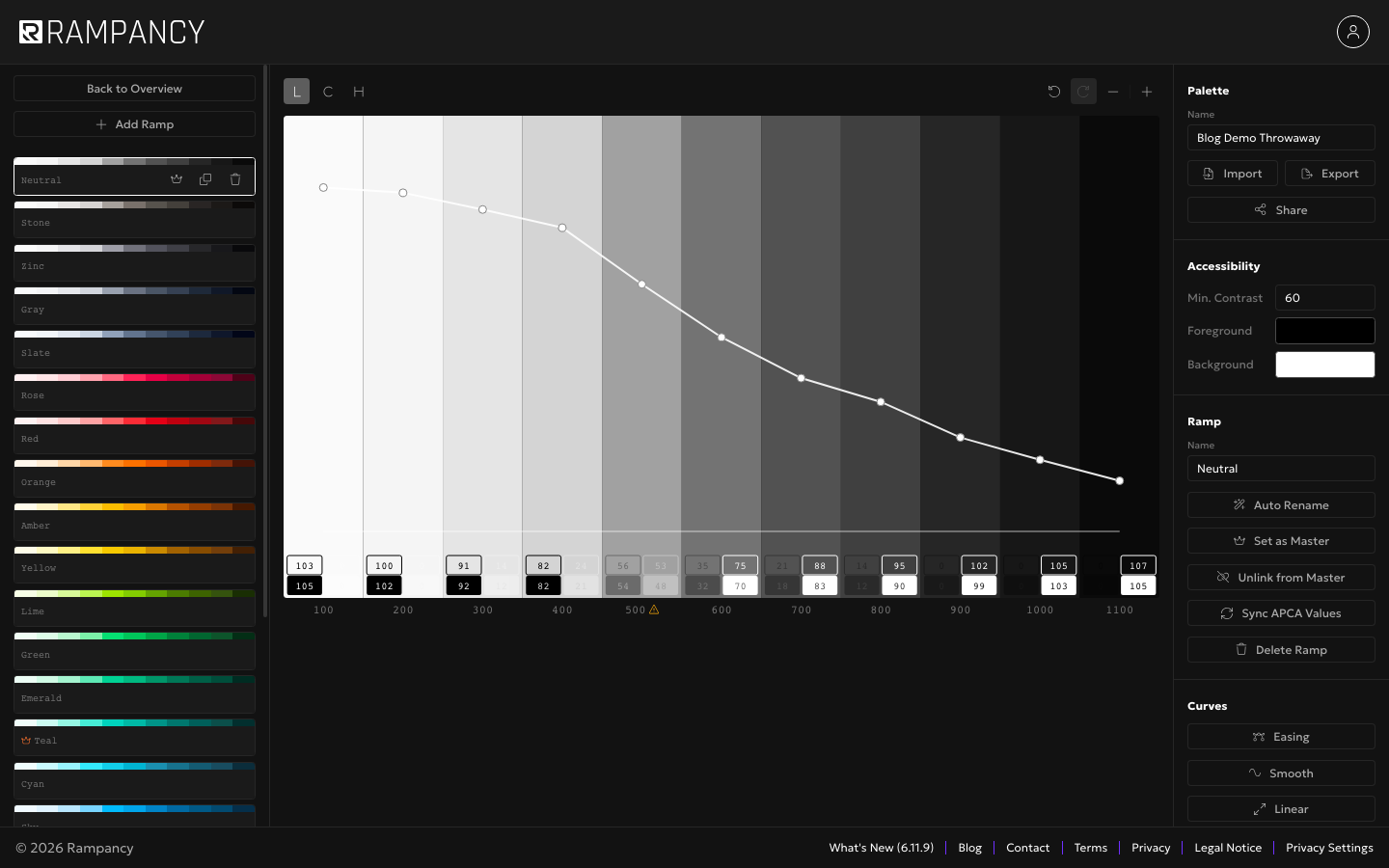
Each step in a ramp shows four small chips underneath it: your foreground text on that step, your background text on that step, and the step itself as text on both foreground and background. The number is APCA Lc, a newer contrast measure than the old WCAG ratio, built to match how human eyes actually perceive contrast rather than a fixed math ratio. Higher magnitude means stronger contrast. A chip fills in solid when it passes your Min. Contrast setting and stays dim when it doesn't, so a scan down the ramp tells you exactly which steps are safe for text at a glance.
Step 2: Set a Master ramp
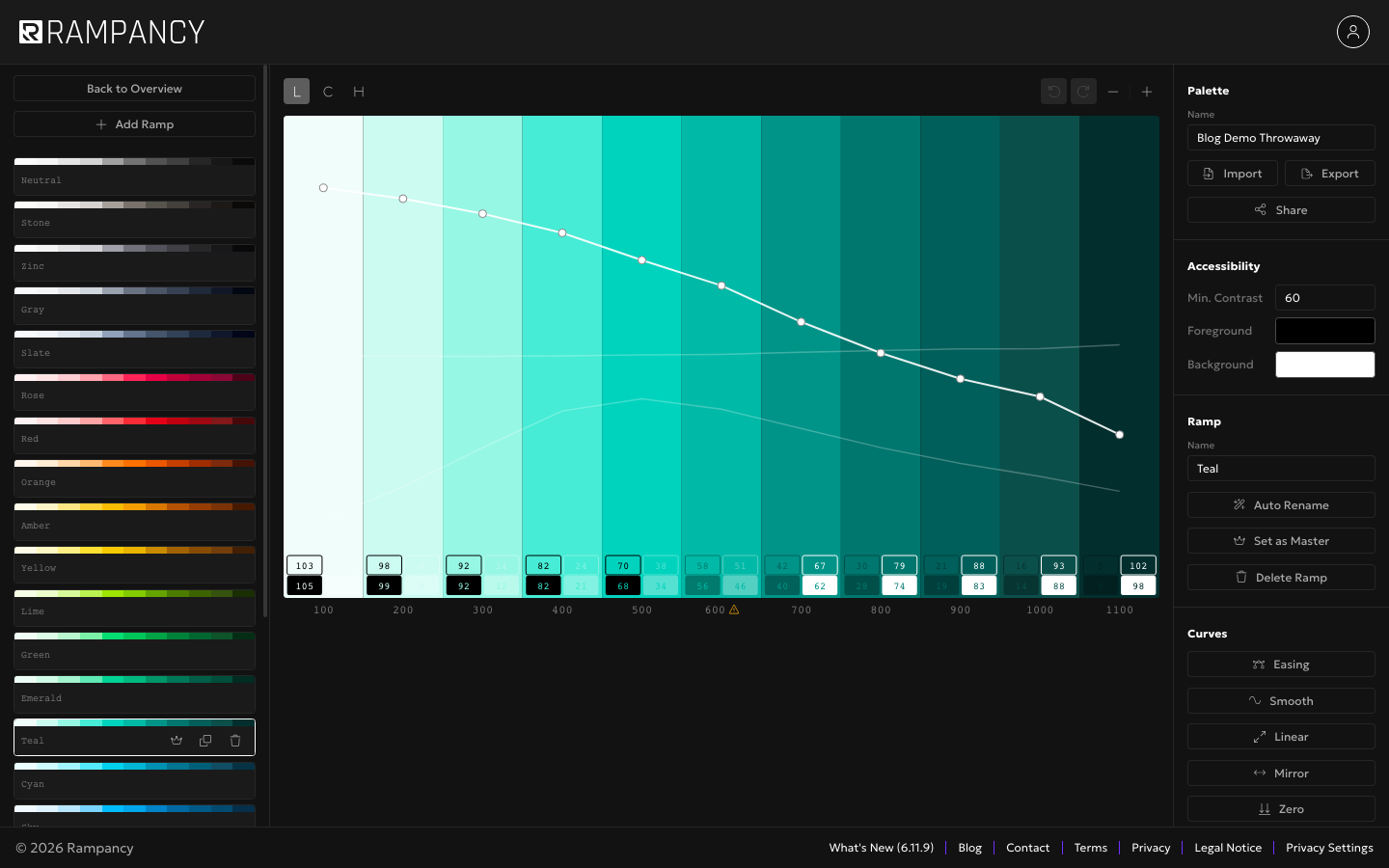
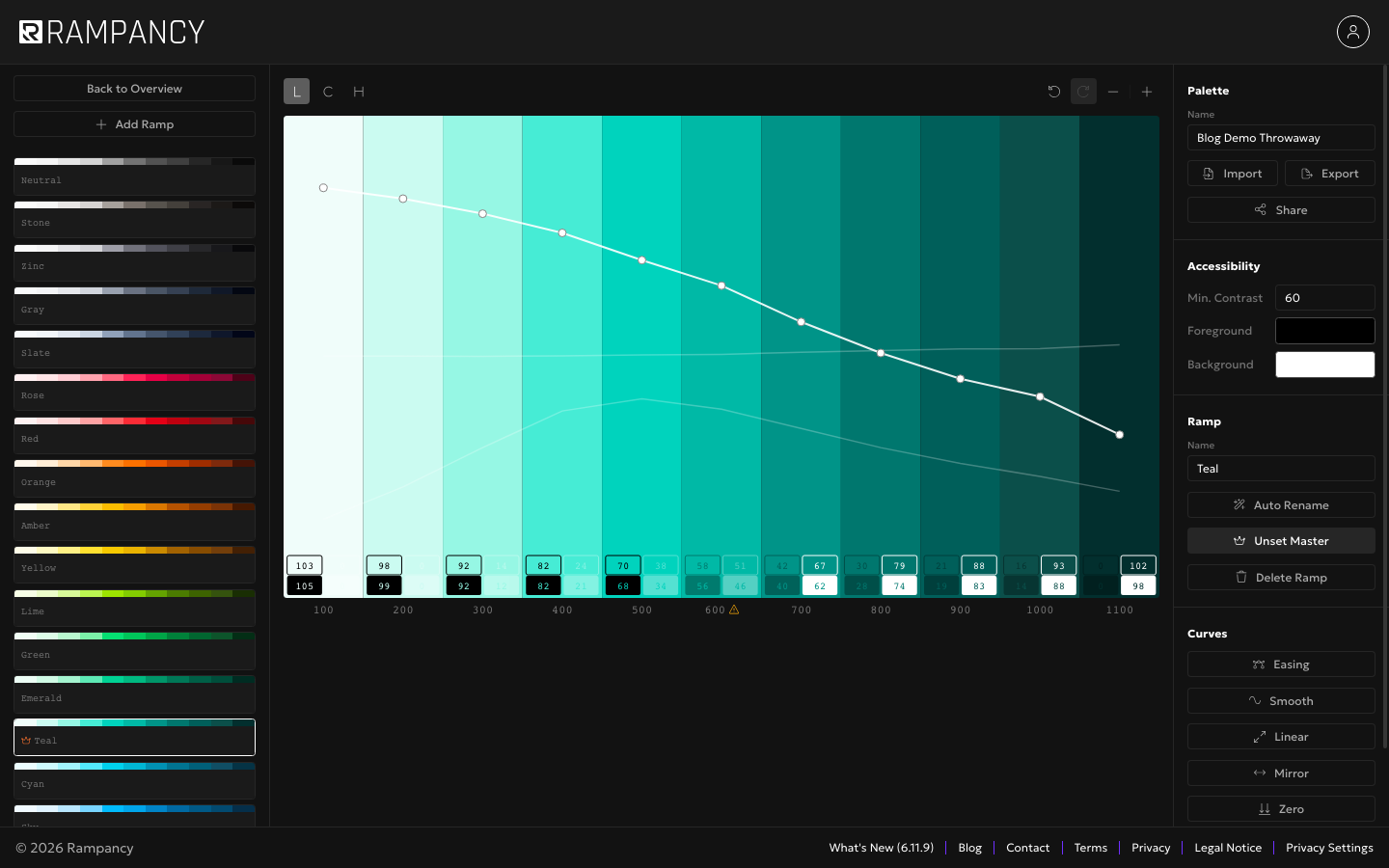
Open the ramp you want everything else to match and click Set as Master in the right sidebar. A small crown appears next to its name in the sidebar. Master is scoped: a group's master only governs the ramps in that group, and ungrouped ramps share one scope of their own, so you can have a different master per group without them stepping on each other.
Step 3: Select another ramp in the same scope
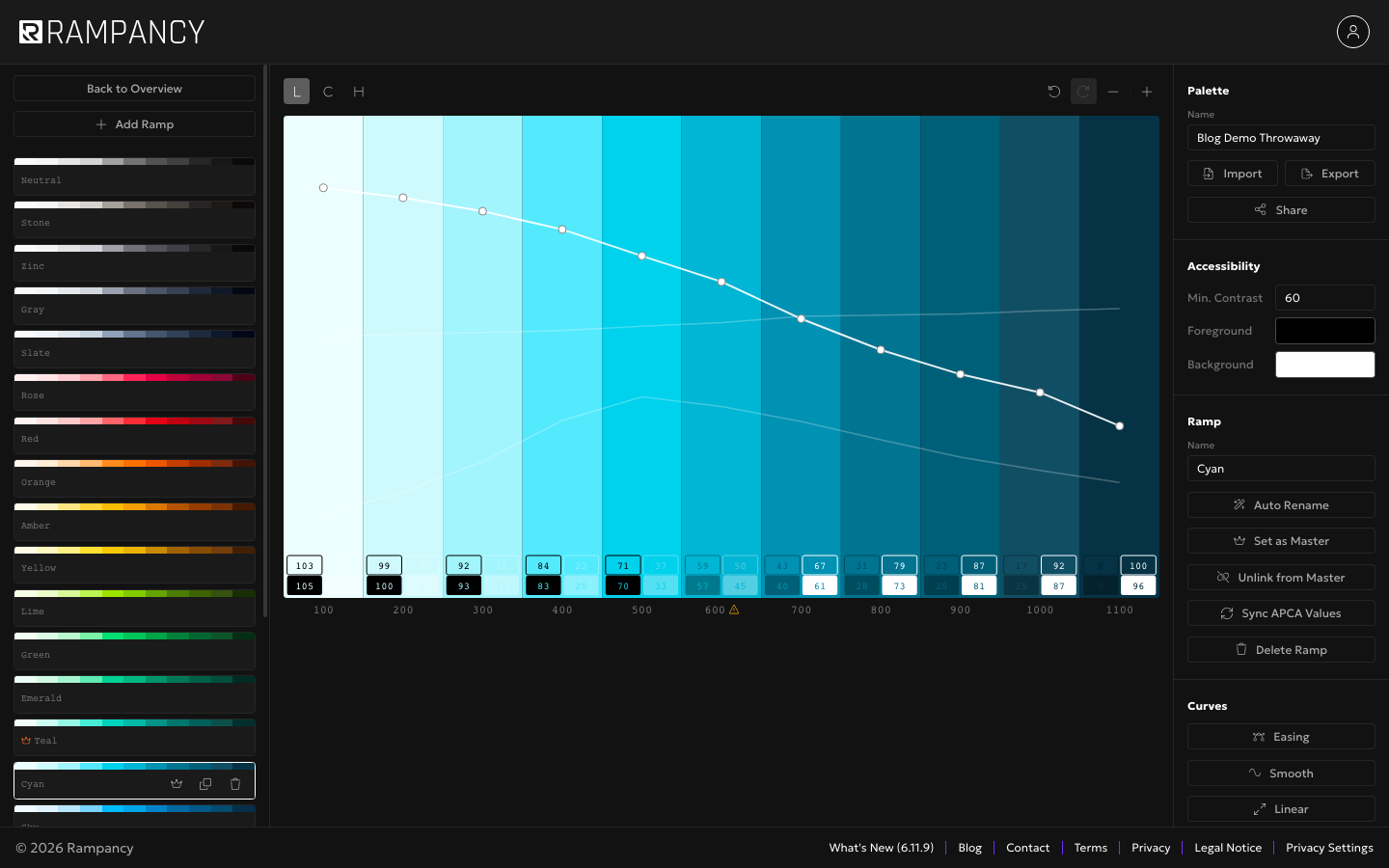
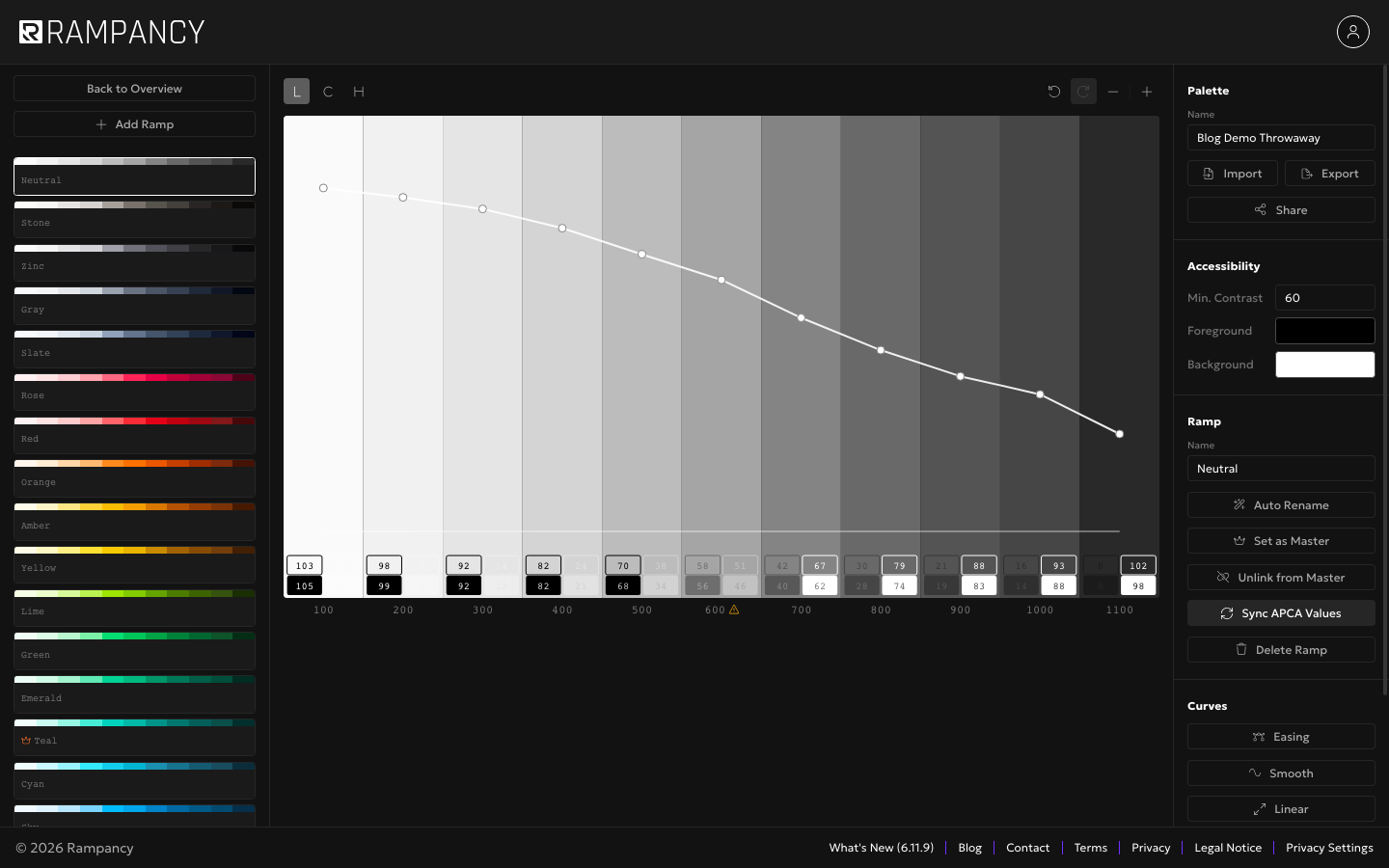
Click a different ramp and a new button shows up: Sync APCA Values. It only appears when the selected ramp's scope has a master and the ramp isn't the master itself. Before syncing, this ramp's own contrast numbers reflect whatever curve it started with, which can drift quite a bit from the master depending on how the two ramps were built.
Step 4: Click Sync APCA Values
One click and every step's lightness and color intensity update to match the master's contrast numbers exactly, step for step. What doesn't change is the ramp's hue: a cyan ramp synced to a teal master stays recognizably cyan, it just now clears contrast at the same steps the master does. I half expected syncing to just tint everything toward the master's color, and the first time it kept the hue intact was the moment this feature actually clicked for me.
Step 5: Gray ramps stay gray
Sync works on neutral ramps too, with one deliberate exception: a ramp that's pure gray on every step, zero chroma, stays exactly that gray after syncing. Only the lightness shifts to match the master's contrast. A ramp with even a small color tint on some steps doesn't count as pure gray, so it picks up more of that tint the same way a chromatic ramp would. That distinction is deliberate, a genuinely neutral gray should never quietly turn green just because its master happens to be.
FAQ
What exactly is APCA Lc?
It's the Advanced Perceptual Contrast Algorithm's output value, a signed number roughly between -108 and 108 depending on which color sits in front. It accounts for text weight and size in a way the older WCAG contrast ratio doesn't, which is why two colors with an "acceptable" WCAG ratio can still read as APCA failures for thin body text.
Does syncing touch the master ramp itself?
No. Sync APCA Values is always one-directional, follower to master. The master keeps whatever curve you gave it; every other ramp in its scope can choose to match it or opt out.
Can a ramp leave the master's influence without losing its master?
Yes, that's what Unlink from Master does. It's a one-time sync toggle for the older channel propagation a master ramp does automatically, separate from the one-shot Sync APCA Values action covered here.
Building a palette that actually passes contrast checks shouldn't be a separate chore from designing it. Try it with your own colors and see where your ramps land.